Reviewing a general ledger is slow work. You pull an account transactions report, read down the list, and decide what needs a closer look, a cost that should be capitalised, a personal expense that slipped through, a number that’s just too big to leave unchecked. Do it once, and it’s fine. Do it across 40 files in a row, and things start to slip.
That’s the job we’re handing to AI in our next workpaper release.
We built this because it fits how we see RadiusCore’s role: to keep you in the tools you already use and take the repetitive parts off your plate so you can spend more time actually doing accounting.
Reviewing transactions one by one is exactly the kind of work that’s easy to rush and easy to get wrong when you’re tired, but it’s also the work where a mistake matters. So rather than ask you to do more of it, we’ve put an AI agent inside the workpaper to check every line with you. It flags what’s worth a second look, tells you why, and leaves the judgement where it belongs…with you.
Here’s what it does and how it works.
What it is
There’s a new button on the workpaper: Analyse with AI. Press it, and RadiusCore reviews every transaction in that account and writes its findings straight back into the workpaper. No exporting, no separate tool, no leaving Excel.
It doesn’t replace your judgement. It gives you a second set of eyes on every line, so you spend your time on the transactions that actually need an accountant, not on reading past the ones that are obviously fine.
How it works
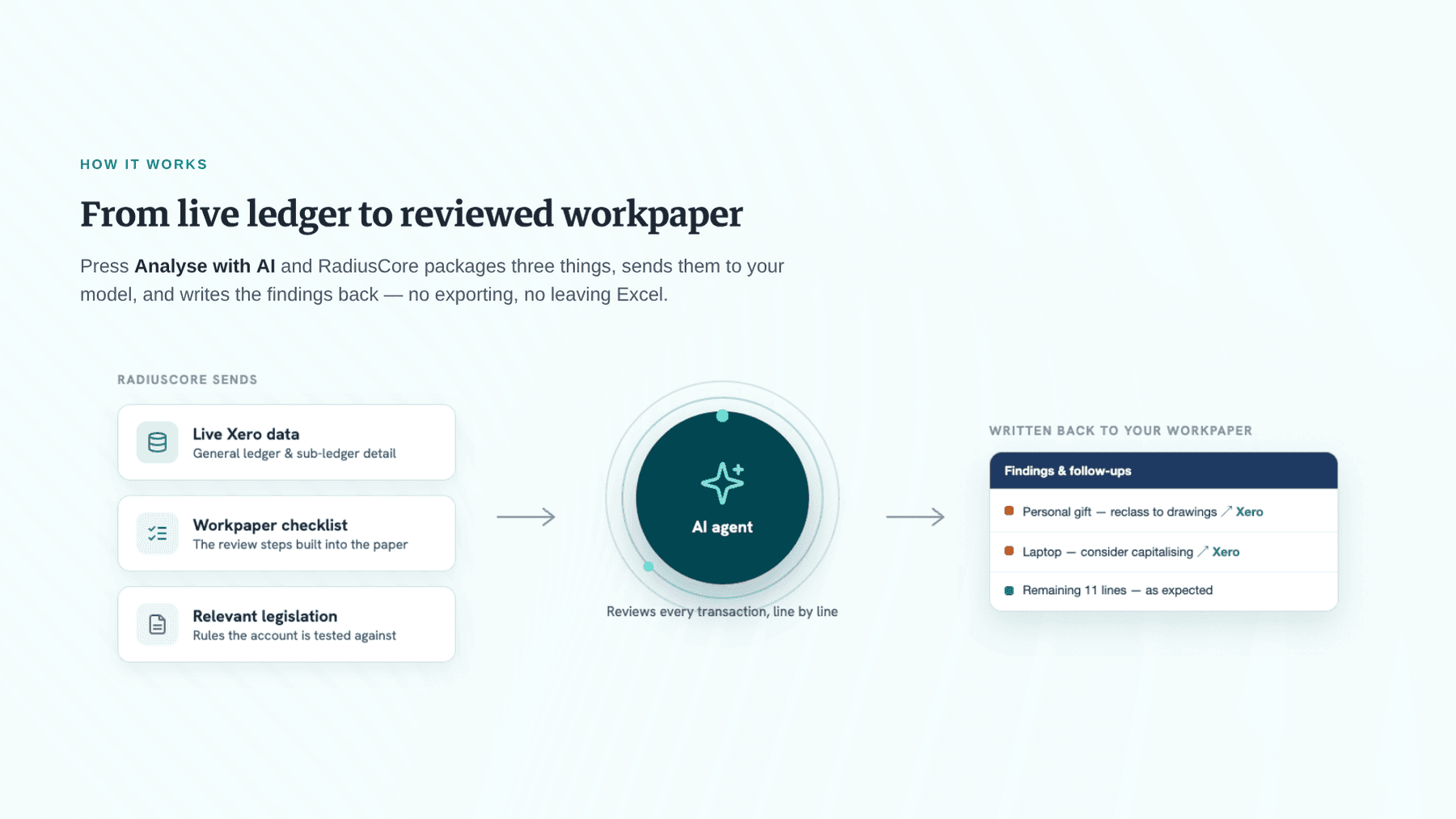
When you press the button, RadiusCore packages up three things and sends them to an AI agent:
The live general ledger and sub-ledger data pulled from Xero
The checklist built into that workpaper
Relevant pieces of legislation
The AI reads all of it, reviews each transaction, and writes its analysis back into the workpaper. Anything worth a closer look gets flagged and colour-coded, with a suggested follow-up action next to it. There’s even a hyperlink that takes you straight to the transaction in Xero.
To give you a sense of it: in our testing on an office expenses account with 14 transactions, the AI cleared most as expected activity and flagged three:
a payment that looked like a personal gift
a credit note to verify, and
a material laptop purchase.
On a legal fees account, it flagged a cost tied to a shareholding change and suggested checking whether it needed to be capitalised.
A few things worth knowing:
You choose where to use it. RadiusCore only sends data from the specific workpapers you run it on, so you’re not analysing every account for every client by default.
You can run it as many times as you want. There’s no limit. Recode something in Xero, repopulate the sub-ledger, and rerun the analysis.
It’s launching in four workpapers to start, plus a sundry workpaper you can duplicate for any account. Available in both our New Zealand and Australian versions.
Your tenancy, your AI, your data never leaves
This is the part we’ve been most deliberate about.
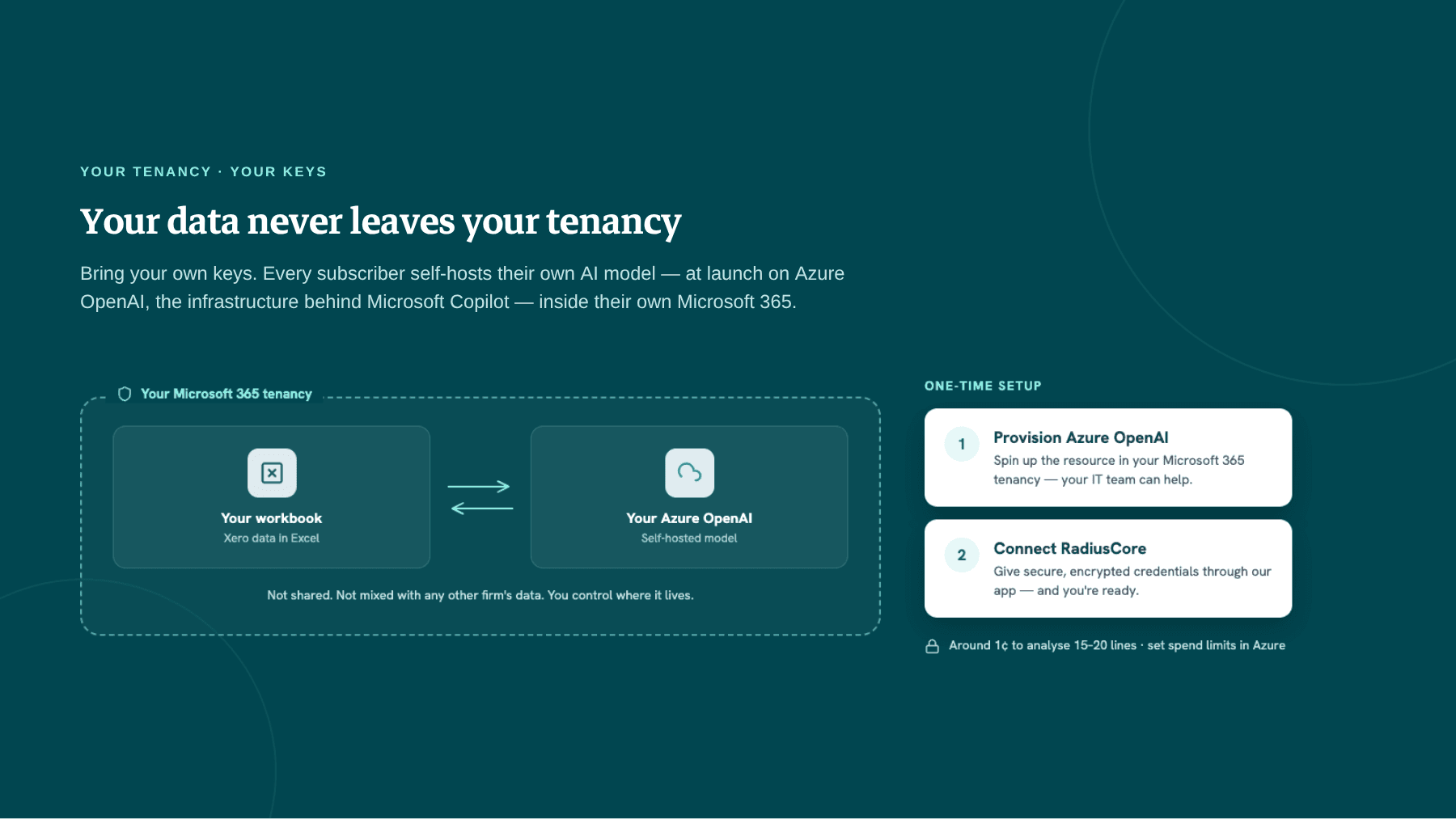
We’ve built the feature as a “bring your own keys” setup. Every RadiusCore subscriber self-hosts their own AI model. At launch that runs on Azure OpenAI, the same trusted infrastructure behind Microsoft Copilot, inside your own Microsoft 365 tenancy. Since firms using RadiusCore already run Xero for client data and Microsoft 365 for email, files, and spreadsheets, you already have a tenancy to host it in.
What that means in practice: your client data stays inside your tenancy. It isn’t shared anywhere, and it isn’t mixed with any other RadiusCore subscriber’s data. You control where your data lives. And because of how we’ve built it, we can add support for other AI models later if you’d rather not use Azure.
In an age where data gets fed into bulk models with no regard for security, we’re staunchly against that. Your data, your decision.
What it costs
There’s no cost to have the Azure resource sitting there until you actually use it. After that, the cost depends on how much data you send and which model you pick. In our testing, analysing 15–20 lines came in at around 1 cent, and you can set spend limits in Azure so nothing blows out.
Setting it up
There’s a one-time setup if you want to use the integration:
Provision an Azure OpenAI resource inside your Microsoft tenancy. Most firms will want their IT team to help with this step.
Give RadiusCore secure, encrypted access credentials through our app, so we can send your data to your resource and bring the analysis back.
Once that’s done, your data flows from your workbook to your AI model and back to your workbook — and never leaves your Microsoft 365 environment.
We’ll send detailed setup instructions ahead of the release, so you can have the resource ready and hit the ground running on day one.
A note on what it needs
The AI works best with clean data. It leans on the transaction detail in your accounting system, including the bill description, alongside the checklist and everything else we send in the background. Good bookkeeping in, better analysis out.
It’s also Xero-first. Workpapers support MYOB via a trial balance import, but the AI analysis needs sub-ledger detail we can only pull from Xero, so it’s Xero-only for now.
New to RadiusCore? Here’s how to get set up
AI analysis lives inside our workpapers, so if you’re not a RadiusCore user yet, here’s the path to using it:
Get the Excel add-in. This is what connects Xero to Excel, and everything else runs on top of it. Download it and start a 30-day free trial at radiuscore.co.nz/download — no credit card needed.
Add workpapers. The AI analysis is a workpaper feature, and workpapers need the add-in to run. Email our support team and we’ll sort you out with a trial of those too.
Set up your AI resource. Provision an Azure OpenAI resource in your Microsoft 365 tenancy (your IT team can help), then connect it to RadiusCore. We’ll send you step-by-step instructions ahead of the release.
Not sure where to start? Book a demo and we’ll walk you through the whole thing and work out whether it’s a fit for your firm.
This is just the start
AI analysis is launching soon, and it’s the first step, not the finished picture. We’ll be watching how firms use it and rolling it out across more workpapers over time — and we’d genuinely like your feedback to help shape where it goes next.