
Documentation
Read our guide for step-by-step instructions, best practices, and tips to get the most out of RadiusCore.
Search
Installation Guide
User Documentation
Administrator Documentation
API Documentation
Workpapers
Change Log
Installing RadiusCore
Standard Installation
Close all instances of Microsoft Excel.
Run
RadiusCore.msi.Proceed with RadiusCore setup, choosing an option for installation type as follows:
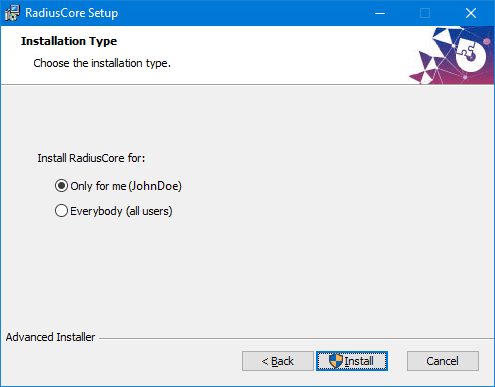
Only for me
Recommended for companies where each user has their own computer.
Installs RadiusCore for the current user only.
Administrator permissions not required.
The user will be able to update RadiusCore at any stage when a new version is available.
Install location:
C:\Users\%USERNAME%\AppData\Local\RadiusCore.
Everybody
Recommended for companies utilising a terminal server or virtual desktop environment.
Installs RadiusCore for all user accounts on the target computer.
Administrator permissions required.
To install updates, Excel will need to be launched with Administrator permissions.
Install location:
C:\Program Files (x86)\RadiusCore.
Complete RadiusCore setup, selecting Next where required.
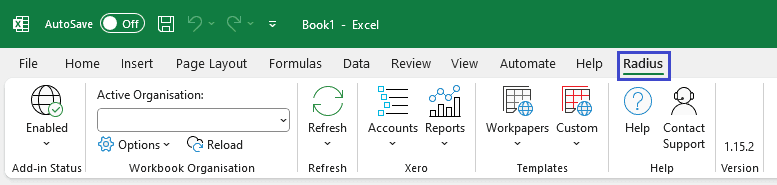
Open Microsoft Excel. If the Radius tab appears then installation is complete!
If you cannot see Radius in the Excel Ribbon please see RadiusCore Not Visible to troubleshoot potential issues.
IT Administrator Installation
These instructions are for IT administrators who would like to deploy RadiusCore to managed devices in-bulk.
RadiusCore can be installed using package management tools like Intune using the following configurations:
Per-User
Per-Machine
If RadiusCore is installed using the Per-Machine configuration, the Excel add-in will need to be registered for all users following installation.
To register the add-in file with Excel, create the following registry keys for each user:
Enquire Now
Reach out to the team at RadiusCore to see how we can help you.

Get our Xero app
Our add-in provides a two-way data transfer between Xero online applications and desktop Microsoft Excel.

Have questions?
Reach out to our support team for quick answers, product guidance, or help getting started with RadiusCore.
© 2025 RadiusCore. All rights reserved.